GitHub公布Copilot CLI指令速查表
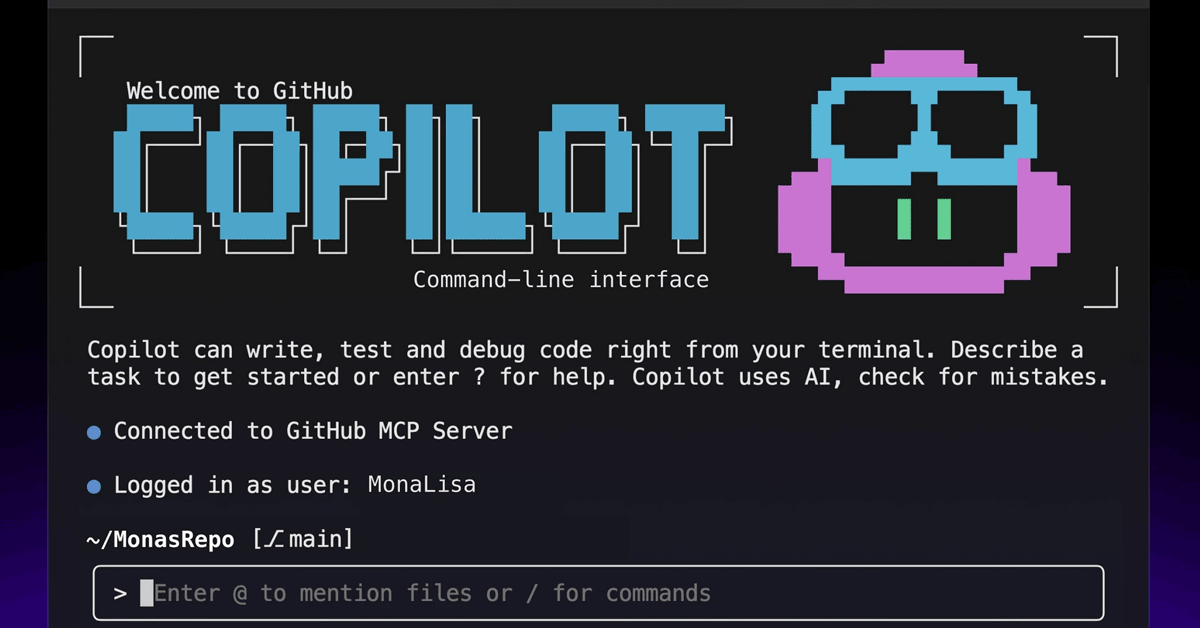
💡New Copilot CLI cheatsheet supercharges terminal coding—no UI switching needed.
⚡ 30-Second TL;DR
有什麼變化
官方斜線指令速查表
為什麼重要
GitHub在官方部落格彙整並說明GitHub Copilot CLI的斜線指令。開發者可於終端機內執行快速、可重複動作,無需切換編輯器或網頁介面。
下一步行動
Visit GitHub blog to copy Copilot CLI slash commands into your terminal workflow.
關鍵要點
- •官方斜線指令速查表
- •支援終端機專屬快速動作
- •無需切換編輯器或網頁UI
- •促進開發者迭代工作流程
🧠 深度解析
背景與延伸:來自公開資料,非原文內容。引用 8 個來源。
🔑 增強重點摘要
- •GitHub Copilot CLI slash commands enable developers to perform explicit terminal actions (/clear, /add-dir, /cwd, /model, /session) without natural-language prompts, increasing speed, predictability, and auditability[1]
- •Slash commands are available across multiple Copilot interfaces including Copilot CLI, Copilot Chat, and agent mode, providing consistent keyboard-driven workflows[2]
- •Context management commands (/usage, /context, /compact) allow developers to monitor and manually manage token usage, with automatic compression triggered at 95% capacity[7]
- •Custom prompt creation via /generateInstructions and /savePrompt commands enables teams to build reusable, repository-level instructions and extract prompts from conversation threads[3]
- •Slash commands support accessibility features and compliance requirements by providing explicit control over file access scope, session context, and model selection without relying on natural-language interpretation[1]
🛠️ 技術深入
- Slash commands are prefixed with
/and instantly trigger context-aware actions within the CLI environment - Core shortcuts include
Esc(cancel operation),Ctrl+C(cancel/clear/exit),Ctrl+L(clear screen),@(mention files),/(show commands), and arrow keys (navigate history)[5] - Non-interactive mode supports programmatic usage via
-pflag for single prompts and-sflag to output only Copilot's response, enabling CI/CD pipeline integration and scripted automation[5] - Context window management uses automatic compression when approaching 95% token limit and warns when less than 20% remains[7]
- Skills can be manually invoked via slash commands (e.g.,
/Markdown-Checker check README.md) or automatically triggered when relevant to current task[8] - Hooks provide programmable control at session lifecycle points (preToolUse, postToolUse, userPromptSubmitted, sessionStart, sessionEnd, errorOccurred, agentStop, subagentStop) for enforcing guardrails, logging, and policy checks[8]
- Custom slash commands can be created via markdown files in designated folders, allowing teams to extend functionality beyond default system prompts[6]
🔮 前景展望AI analysis grounded in cited sources
The formalization of slash commands in GitHub Copilot CLI represents a shift toward explicit, auditable AI-assisted development workflows. By prioritizing keyboard-driven, repeatable commands over natural-language prompts, GitHub is addressing enterprise concerns around compliance, security, and predictability in AI-assisted coding. The extensibility of custom commands and hooks suggests a future where development teams can enforce organizational policies and guardrails directly within terminal-based AI workflows, potentially reducing friction in adopting AI tools in regulated industries. Integration across Copilot Chat, CLI, and agent mode indicates GitHub's strategy to create a unified AI assistant ecosystem that maintains consistency across different developer interfaces.
⏳ 時間線
📎 來源 (8)
Factual claims are grounded in the sources below. Forward-looking analysis is AI-generated interpretation.
- letsdatascience.com — Copilot Cli Introduces Slash Command Controls 5c570740
- github.blog — A Cheat Sheet to Slash Commands in Github Copilot Cli
- learn.microsoft.com — Release Notes
- GitHub — 1044
- docs.github.com — Cli Getting Started
- GitHub — 1113
- dev.to — Github Copilot Cli a Devops Engineers Practical Guide to AI Powered Terminal Automation 1jh0
- docs.github.com — Comparing Cli Features
AI 週報
閱讀本週精選 AI 大事摘要 →
👉相關動態



AI 策展新聞聚合。所有內容版權歸原始發布者所有。
原始來源: ITmedia AI+ (日本) ↗
每週 AI 簡報
每週一封,可隨時退訂。